Remote work isn’t going anywhere — but the chaos that comes with it doesn’t have to stick around either. If you’ve ever lost an important update buried in a Slack thread, sat through a video call that could have been a shared doc, or struggled to keep a distributed team aligned across time zones, you already know the problem. The best collaboration tools for remote teams in 2026 have come a long way, and choosing the right stack can mean the difference between a team that thrives and one that’s constantly playing catch-up.
Remote teams need different things depending on their size and workflow, so we’ve mapped out the leading collaboration platforms across project management, communication, async video, and real-time collaboration.
Key Takeaways
- Remote teams thrive with integrated collaboration tools combining messaging, file storage, and video conferencing in single platforms.
- Notion excels as an all-in-one workspace, consolidating documentation, task management, and team communication without switching applications.
- Meeting intelligence platforms like Otter.ai and Fireflies.ai automatically transcribe and summarize discussions, eliminating manual note-taking overhead.
- Evaluating collaboration tools requires balancing feature richness, pricing tiers, integration capabilities, and specific team workflow requirements.
- Successful tool selection depends on team size, budget constraints, existing software stack, and whether you prioritize simplicity or advanced features.
In This Article
- Why Remote Teams Need the Right Collaboration Tools
- What Makes a Great Collaboration Tool?
- All-in-One Workspace: Notion for Teams
- Meeting Intelligence: Otter.ai & Fireflies.ai
- Pricing & Affordability Breakdown
- Pros, Cons & Honest Trade-Offs
- Which Tool Should You Choose?
- Get Started Today: Your Next Step
Why Remote Teams Need the Right Collaboration Tools
Remote work has matured, but the friction hasn’t disappeared — it’s just shifted. Instead of watercooler miscommunications, you’re dealing with decisions buried in email chains, project updates scattered across three different apps, and teammates duplicating work because no one knew it was already in progress. That kind of invisible overhead adds up fast.
Think about what a typical workday looks like without a cohesive tool stack. You’re toggling between your inbox, a chat app, a spreadsheet, and maybe a project board that nobody updates consistently. Context gets lost in the handoff. New team members spend their first weeks just trying to figure out where things live, let alone how to contribute. And when everyone’s spread across different time zones, the cost of miscommunication isn’t just frustrating — it’s measurable in missed deadlines and rework.
The reality is that email was never built for the way distributed teams operate today. In 2026, your team expects faster feedback loops, clearer ownership, and the ability to collaborate without being online at the same time. That’s a fundamentally different set of demands than a CC’d thread can handle.
The right collaboration tools solve for this by creating a single source of truth — one place where decisions are documented, tasks are assigned, and progress is visible to everyone who needs to see it. When your tools are aligned with how your team actually works, you spend less time chasing updates and more time doing the work that matters.
- Reduced friction: Fewer handoff gaps and less back-and-forth to get simple answers
- Better visibility: Everyone knows what’s happening, who owns what, and what’s next
- Saved time: Less time in unnecessary meetings and fewer “just checking in” messages
- Stronger async culture: Work moves forward even when teammates aren’t online simultaneously
Getting this right isn’t about using the most tools — it’s about using the right ones together.
What Makes a Great Collaboration Tool?
With dozens of options on the market, it’s easy to get distracted by flashy features you’ll never actually use. Before you commit to any platform, it helps to have a clear picture of what “good” looks like for a remote team. The best tools don’t just check boxes — they reduce the mental overhead of working across distances.
In 2026, the bar has shifted. AI-assisted features are no longer a premium add-on; they’re increasingly standard. Automatic meeting summaries, smart task suggestions, and AI-powered search are things your team will expect out of the box. If a tool doesn’t offer at least some of these capabilities, it’s already playing catch-up.
That said, sophistication means nothing if your team won’t use the tool consistently. Adoption is everything with collaboration software. A platform that’s intuitive enough for your least technical teammate is always more valuable than one packed with power features that only two people understand.
Here are the criteria worth weighing as you evaluate your options:
- Centralized workspace: Everything — docs, tasks, conversations — lives in one place, not scattered across five apps
- Real-time and async updates: The tool works whether your team is online together or spread across time zones
- Integrations: It connects cleanly with the tools you already use, like your calendar, email, or design apps
- AI capabilities: Smart summaries, search, and automation that save time without requiring technical setup
- Affordability: Pricing that scales reasonably as your team grows, without burying key features behind expensive tiers
Core Features to Look For
Beyond the big-picture criteria, there are specific day-to-day features that separate genuinely useful tools from ones that just look good in a demo. Think about the actual moments where your team loses time — and look for tools that address those directly.
- Document management: Create, store, and edit shared docs without version confusion or emailed attachments
- Task tracking: Assign work, set due dates, and see what’s in progress at a glance — no status meeting required
- Built-in communication: Threaded comments or chat that keeps conversations tied to the relevant work, not buried in a separate inbox
- Meeting notes: Automatic or easy-to-create records of decisions made, so nothing falls through the cracks after a call
- Search functionality: Find anything — a file, a decision, a conversation — quickly, even if it happened months ago
- Mobile access: A usable mobile app so your team isn’t locked out when they’re away from their desk
If a tool handles most of these well and fits your budget, it’s worth a closer look. If it struggles on two or more, keep shopping.
All-in-One Workspace: Notion for Teams
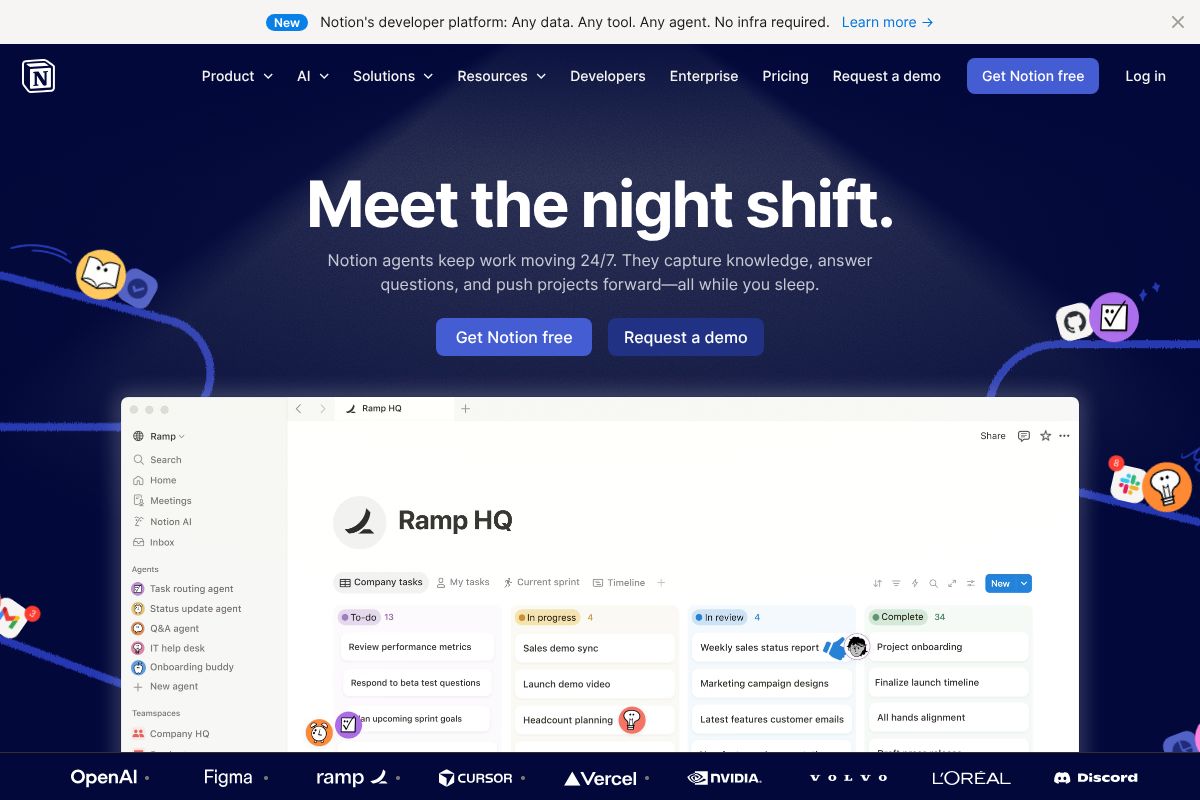
If your team is tired of bouncing between a docs tool, a project manager, a wiki, and a spreadsheet, Notion is worth a serious look. It brings all of those functions into a single, highly flexible workspace — meaning your team’s meeting notes, content calendar, client database, and onboarding docs can all live in one place, linked together and actually findable.
Notion works around the concept of building blocks: pages, databases, tables, boards, calendars, and galleries that you can combine however your workflow demands. A content team might use it to manage editorial calendars alongside article briefs. An agency might build a client portal next to an internal project tracker. The flexibility is genuinely impressive — but it does come with a cost.
The Business plan runs $10 per user per month and includes Notion built in. In 2026, that AI layer has matured considerably — you can use it to summarize long pages, auto-generate first drafts, extract action items from meeting notes, and ask questions across your entire workspace. For teams that generate a lot of written content or documentation, this alone can save hours each week.
The honest trade-off: Notion has a steeper learning curve than most tools in this category. Out of the box, it’s essentially a blank canvas. New team members often need time to understand how databases relate to pages, and a poorly organized Notion workspace can become just as chaotic as the scattered tools it replaced. If you invest time in setting it up well — or use one of their many templates — it pays off. If you don’t, it won’t.
Best For: Teams Building Shared Knowledge
Notion shines brightest for content teams, product teams, and agencies that need both a working project tracker and a growing knowledge base in the same environment. Think editorial teams documenting brand guidelines alongside their publishing calendar, or agencies keeping client SOPs next to active campaign boards.
The AI features are especially useful here — summarizing lengthy research docs, drafting content outlines, or pulling key decisions out of dense meeting notes without anyone having to do it manually.
- Content teams: Manage briefs, drafts, and publishing schedules in one connected space
- Agencies: Build client-facing wikis alongside internal project management
- Product teams: Link roadmaps, specs, and meeting notes so context is never lost
- Onboarding: Create structured, searchable documentation new hires can actually navigate
That said, if your team’s primary need is simple task assignment and deadline tracking, Notion is likely overkill. The setup investment makes more sense when you genuinely need the knowledge-management layer — not just a to-do list with a nicer interface.
Meeting Intelligence: Otter.ai & Fireflies.ai
One of the biggest shifts in remote work over the past couple of years has been the move toward AI-powered meeting intelligence. Instead of scrambling to take notes during a call or relying on someone’s memory of what was decided, tools like Otter.ai and Fireflies.ai now transcribe, summarize, and make your entire conversation history searchable. In 2026, accuracy has improved dramatically — to the point where both tools handle accents, crosstalk, and technical jargon far better than earlier versions could.
The two tools serve overlapping but distinct audiences. Choosing between them mostly comes down to what you need after the meeting ends.
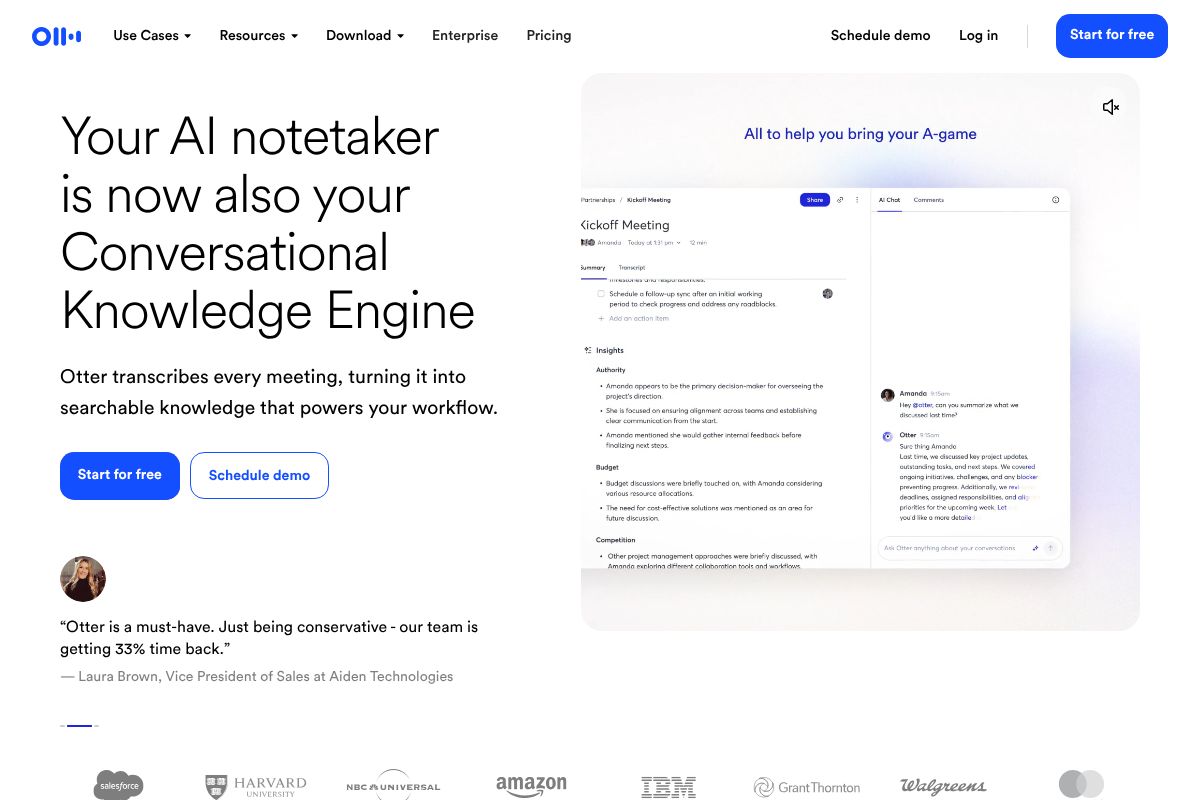
Otter.ai: The Meeting Transcription Leader
Otter.ai has built its reputation on doing one thing exceptionally well: capturing everything that happens in a meeting and making it instantly usable. Real-time transcription runs as your call happens, and speaker identification means you’re not left guessing who said what. By the time the meeting ends, you already have a searchable, shareable transcript waiting for you.
The integrations are solid across the board. Otter.ai connects natively with Zoom, Microsoft Teams, and Google Meet, so it joins your calls automatically without any manual setup. You can highlight key moments, add comments, and share specific clips with teammates who weren’t in the room.
- Real-time transcription with speaker labels and timestamps
- AI meeting summaries that pull out action items automatically
- Searchable transcript history across all past meetings
- Native integrations with Zoom, Teams, Google Meet, and Slack
The free tier gives you limited monthly transcription minutes and caps on AI features — enough to test it, but not enough for daily use. The Pro plan at $10/month (billed annually) removes most of those limits and is genuinely worth it for consultants, marketers, or anyone bouncing between three calls a day who can’t afford to lose track of decisions.
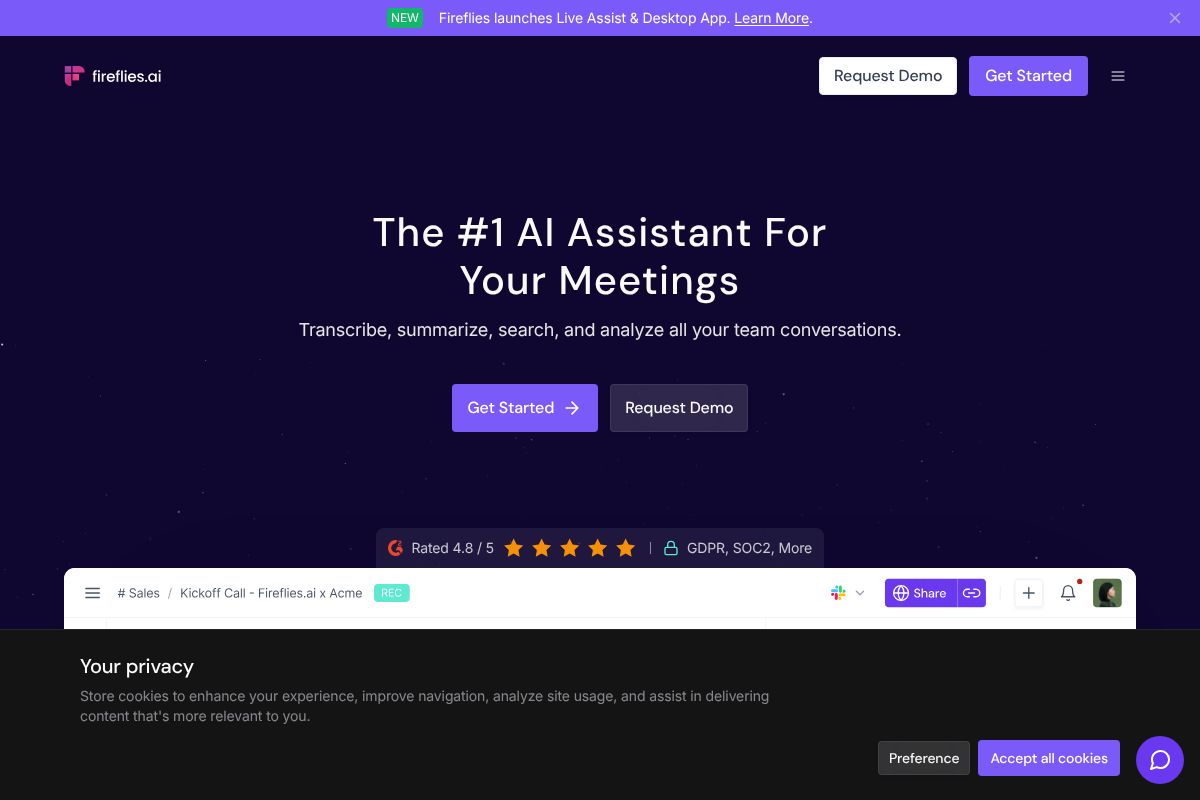
Fireflies.ai: Built for Sales & Recruiting
Fireflies.ai covers the transcription basics just as well as Otter, but its real value is in conversation intelligence — the layer of analysis that sits on top of the transcript. For sales teams, that means tracking deal-related keywords, monitoring talk-to-listen ratios, and flagging moments where a prospect raised an objection or asked about pricing. For recruiters, it means building a searchable record of every candidate conversation so nothing slips through the cracks during a busy hiring sprint.
The tool integrates with CRMs like HubSpot and Salesforce, which means call notes can flow directly into your pipeline without manual data entry. That alone saves sales reps a meaningful chunk of time each week.
- Conversation intelligence with keyword tracking and sentiment analysis
- CRM integrations with HubSpot, Salesforce, and Pipedrive
- Topic-based search across your entire meeting history
- Recruiter-specific features for candidate tracking and interview review
Like Otter, Fireflies.ai offers a Pro plan at $10/month (billed annually), making it easy to justify for any revenue-generating role. If your team runs discovery calls, demos, or structured interviews at volume, Fireflies will likely deliver more actionable output than a general-purpose transcription tool. The trade-off is that the interface has more complexity — there’s a learning curve if you just want quick, clean notes without digging into analytics.
Pricing & Affordability Breakdown
One of the strongest arguments for this generation of collaboration tools is how accessible they’ve become. Whether you’re a solo freelancer or managing a team of ten, you can get meaningful value without spending a dollar upfront. Here’s how the pricing stacks up across the three tools covered in this article.
| Tool | Free Tier | Paid Plan (Annual) | Per-User Cost |
|---|---|---|---|
| Otter.ai | 300 monthly transcription minutes, 3 imports | Pro at $16.99/month | Individual or team billing available |
| Fireflies.ai | Limited storage, basic transcription | Pro at $10/month | Per seat, scales with team size |
| Notion | Unlimited pages, up to 10 guests | Plus at $10/month per user | Per user, with team and enterprise tiers |
When you think about ROI, the math is straightforward. If a paid plan saves even two or three hours of manual work per week — whether that’s writing up meeting notes, chasing down documents, or re-explaining decisions to teammates — it’s paying for itself many times over at these price points.
Small teams can absolutely start on free tiers and scale up only when the limits start to pinch. That’s a low-risk way to test whether a tool actually fits your workflow before committing to a subscription.
Free vs. Paid: When to Upgrade
Free tiers are genuinely useful for light usage. If you’re a small team holding a handful of meetings per week, or a freelancer who just needs basic transcription, you may not need to upgrade at all — at least not immediately.
That said, paid plans start making sense when:
- Your team is growing beyond 3–5 people and needs shared workspaces or admin controls
- You’re hitting storage or usage limits on the free tier regularly
- You need CRM integrations, analytics, or automation features locked behind paid tiers
- Collaboration is happening daily at volume, not just occasionally
The good news is that all three tools let you test the core experience before spending anything. Start free, see what you actually use, and upgrade only when the friction of the free tier outweighs the cost of the next plan up. For most small teams, that’s a very reasonable path forward.
Pros, Cons & Honest Trade-Offs
No tool is perfect for every team, and it’s worth being upfront about where each of these falls short. Choosing the wrong tool — or the right tool used the wrong way — can actually slow your team down rather than speed it up.
Notion
Notion is genuinely powerful, but that power comes with a real learning curve. New users often feel overwhelmed by the blank canvas — there’s almost too much flexibility, which can lead to inconsistent structures across your workspace. If your team doesn’t invest time in setting up templates and conventions early, things can get messy fast.
- Pro: Extremely versatile — docs, wikis, databases, and project tracking all in one place
- Pro: Great for async teams that need a single source of truth
- Con: Steep onboarding for non-technical users
- Con: Real-time collaboration still lags behind dedicated tools like Google Docs
Otter.ai
Otter AI’s transcription accuracy is genuinely impressive, and it’s one of the easiest tools to get running quickly. However, it’s primarily a transcription and note-taking tool — don’t expect it to replace a full project management or collaboration platform. If your team needs to act on meeting content beyond reading a summary, you’ll need to pair it with something else.
- Pro: Fast, accurate transcription with minimal setup
- Pro: Works well for solo users and small teams
- Con: Limited built-in collaboration features beyond shared notes
- Con: Free tier caps can feel restrictive for heavy meeting schedules
Fireflies AI
Fireflies shines in sales and client-facing environments where call analytics and CRM sync matter. For a small internal team that just wants cleaner meeting notes, it can feel like overkill — and the interface reflects that complexity.
- Pro: Excellent CRM integrations and conversation intelligence features
- Pro: Strong search and topic-tagging across meeting history
- Con: Feature-heavy for general-purpose teams
- Con: Some advanced analytics are locked behind higher-tier plans
Common Pitfalls to Avoid
One of the biggest mistakes remote teams make is over-tooling — subscribing to five different apps that each solve one small problem, only to end up with a fragmented, confusing stack that nobody fully uses. More tools don’t automatically mean better collaboration; they often mean more context-switching and more things to maintain.
Equally common is under-utilizing what you already have. Notion users who only use it as a basic document editor, for example, are paying for a fraction of its value. Take the time to actually explore the features you’re paying for.
Finally, watch out for poor adoption due to complexity. A tool that only one or two team members understand isn’t a collaboration tool — it’s a solo app with a team subscription. The best collaboration tool isn’t the one with the most features. It’s the one your whole team will open consistently, without being reminded.
Before committing to any platform, pilot it with your actual team for two to three weeks. Real-world friction is the only honest test.
Which Tool Should You Choose?
The honest answer is: it depends on how your team actually spends its time. There’s no single best tool — there’s only the best fit for your specific workflow. That said, a few clear patterns emerge once you know what to look for.
If your team is heavily content- or product-focused — managing wikis, project briefs, roadmaps, or client deliverables — Notion is the natural starting point. Its flexibility makes it especially valuable for teams that need one central source of truth rather than a dozen scattered documents.
If your days are dominated by back-to-back video calls and you’re constantly losing track of what was decided or assigned, Otter.ai solves a very specific but very real pain point. It’s particularly useful for consultants, managers, and anyone who attends more meetings than they’d like to admit.
If you’re in sales, recruiting, or any role where reviewing and coaching on conversations is part of the job, Fireflies.ai brings a level of conversation intelligence that general-purpose tools simply can’t match.
It’s also worth noting that many teams use two or three tools in combination — Notion for documentation, Otter.ai or Fireflies.ai for meetings — and that’s perfectly reasonable. The key is being intentional about it rather than accumulating subscriptions by default.
Whatever you decide, start with the free tier. Every tool listed here offers one, and two to three weeks of real use will tell you more than any feature comparison chart.
Quick Decision Matrix
| Team Type | Primary Need | Recommended Tool(s) |
|---|---|---|
| Content or product teams | Docs, wikis, project management | Notion |
| Meeting-heavy professionals | Transcription, action items, recall | Otter.ai |
| Sales or recruiting teams | Call intelligence, CRM sync, coaching | Fireflies.ai |
| Hybrid or general remote teams | All-in-one collaboration hub | Notion + Otter.ai |
| Small teams on a tight budget | Low-cost, easy adoption | Start with free tiers across all three |
Get Started Today: Your Next Step
If you’ve made it this far, you already know which direction you’re leaning — and that’s a good sign. The hardest part of improving remote collaboration isn’t choosing the right tool. It’s actually starting.
Here’s the simplest path forward based on your situation:
- If your team needs a central hub for docs, projects, and async communication — sign up for Notion’s free plan today. It supports unlimited pages and up to 10 guests, so you can get a real feel for it before committing.
- If meetings are eating your team’s time and nothing is getting captured — try Otter.ai’s free tier, which gives you 300 minutes of transcription per month. Most people are surprised by how quickly it becomes indispensable.
- If you’re in sales, recruiting, or any role where call quality matters — Fireflies.ai’s free plan lets you record and transcribe unlimited meetings, giving you a genuine sense of its conversation intelligence before you upgrade.
Most teams report noticeable productivity gains within two to four weeks of adopting even one of these tools consistently. That’s not a long runway — it’s a few team meetings and a couple of shared documents.
And if you try something and it doesn’t click? Switching is easier than you think. Your data is exportable, your team will adapt, and better-fit tools are always worth the short-term adjustment.
Remote work is already demanding enough. Your team deserves tools that work as hard as you do.
Frequently Asked Questions
What is the best free collaboration tool for remote teams?
Notion offers generous free tier with databases, wikis, and task management. Google Workspace provides free email and document collaboration. Both support small teams without paid subscriptions, though premium features unlock advanced functionality.
Do remote teams really need meeting transcription software?
Yes. Meeting intelligence tools like Otter.ai and Fireflies.ai save 5-10 hours weekly by auto-transcribing calls, creating searchable records, and generating action items. Essential for distributed teams across time zones who miss live meetings.
Can one collaboration tool replace multiple apps?
Partially. All-in-one platforms like Notion consolidate documents, tasks, and communication, reducing app-switching. However, most teams still integrate specialized tools for video conferencing, email, or industry-specific software alongside their primary workspace.
How much should a company spend on collaboration tools?
Budget $5-15 per employee monthly for mid-market teams. Costs scale with team size and feature needs. Prioritize tools offering strong ROI through productivity gains rather than accumulating redundant subscriptions across departments.
Related Reads
- Notion AI Review 2026: Is It Worth It for Your Team?
Honest Notion AI review for 2026. See features, pricing, pros/cons, and how it compares to alternatives for creators and…
- Best AI Scheduling Assistant for Creators & Teams in 2026
Find the best AI scheduling assistant for your workflow. Compare top tools, pricing, and features to save time and stay …
- Best AI Tools for Remote Teams in 2026
Discover the top AI tools for remote teams in 2026. Boost productivity with AI-powered collaboration, transcription, and…