Managing a remote team sounds straightforward — until you’re juggling three different time zones, chasing project updates across five different apps, and wondering why a simple approval is taking three days. Sound familiar? Remote work isn’t going anywhere, but the friction that comes with it doesn’t have to stick around either.
The best tools for managing remote teams in 2026 have matured significantly. They’re smarter, better integrated, and far more focused on reducing the chaos that comes with distributed work. Whether you’re leading a team of five or fifty, the right stack can mean the difference between a team that thrives and one that’s constantly playing catch-up.
We’ve tested and ranked the platforms that actually solve remote team friction: communication tools, project management systems, and async workflows that work at scale.
Key Takeaways
- Remote team management tools centralize communication, task tracking, and documentation in one platform to boost productivity and reduce context switching.
- Notion excels as an all-in-one workspace combining databases, wikis, and project management for teams seeking unified information architecture.
- Meeting documentation tools like Otter.ai.ai and Fireflies.ai automatically transcribe and summarize conversations, eliminating manual note-taking and improving accountability.
- Pricing varies significantly across tools; evaluate total cost of ownership including per-user fees, storage limits, and integration requirements before committing.
- Successful remote team management requires matching tool capabilities to your team’s workflow, communication style, and existing tech stack to maximize adoption.
In This Article
- Why Remote Team Management Tools Matter Now
- What Makes a Great Remote Team Management Tool
- Notion: Your All-in-One Workspace for Remote Teams
- Meeting Documentation: Otter.ai vs. Fireflies.ai
- Pricing Breakdown: What You’ll Actually Spend
- Who Should Use Each Tool
- Common Pitfalls and How to Avoid Them
- Your Next Step: Choose and Start Small
Why Remote Team Management Tools Matter Now
Remote work has moved well past the “experiment” phase. In 2026, distributed teams are the default for a huge portion of the global workforce — and the challenges that come with that setup are well-documented. Async communication gaps, lack of visibility into who’s doing what, and the constant overhead of coordinating across time zones don’t just slow teams down. They burn people out.
The good news is that when you have the right tools in place, most of that friction disappears. Teams that use purpose-built remote management platforms consistently report better clarity on priorities, fewer dropped balls, and less time spent in status-update meetings that could have been a message. That’s not a small thing — it’s the difference between your team doing deep work and your team managing the logistics of doing deep work.
Here’s what’s changed in the current landscape:
- Async-first is now the norm. Tools have shifted from real-time-only to genuinely supporting teams that never overlap in working hours.
- AI is embedded everywhere. Summarization, task suggestions, and automated check-ins are standard features now, not premium add-ons.
- Integration expectations are higher. Teams expect their tools to talk to each other — siloed apps are increasingly a dealbreaker.
- Visibility without micromanagement. The best platforms give managers a clear picture of progress without making employees feel like they’re being watched.
The challenge isn’t finding a tool anymore — it’s finding the right combination for your team’s specific size, workflow, and budget. That’s exactly what this guide is designed to help you figure out.
What Makes a Great Remote Team Management Tool
Not every tool that claims to support remote teams actually makes remote work easier. Some add complexity. Some work beautifully for engineering teams but fall flat for marketers or content creators. Before diving into specific recommendations, it’s worth understanding what separates a genuinely useful platform from one that just looks good in a demo.
For non-technical professionals — think freelancers managing client projects, small business owners coordinating contractors, or marketing teams spread across three time zones — the criteria are pretty specific. You need something your whole team will actually use, not just the one person who set it up.
The five things that matter most come down to this:
- Centralized communication — One place for conversations, decisions, and updates, so nothing important gets buried in someone’s inbox.
- Task tracking — Clear ownership, deadlines, and status visibility without requiring a project management degree to set up.
- Meeting documentation — Automatic notes, summaries, or action items so the people who couldn’t attend aren’t left guessing.
- Integration capabilities — Connections to the tools your team already uses, whether that’s Google Workspace, Slack, or your CRM.
- Ease of use for non-technical users — If onboarding takes longer than a week, adoption will suffer and the tool will quietly get abandoned.
When even one of these elements is missing, you feel it — usually in the form of duplicate messages, missed deadlines, or team members reverting to email for everything.
Core Features to Look For
Beyond the broad criteria, there are specific features that consistently make a difference in day-to-day remote work. The best tools in this space tend to share a common set of capabilities:
- Real-time collaboration — The ability to co-edit documents, comment on tasks, or jump into a quick call when async just isn’t cutting it.
- Async-first design — Structured ways to share updates, give feedback, and move work forward without requiring everyone online at the same time.
- Searchability — Finding a decision made three weeks ago shouldn’t take ten minutes. Good search saves real time at scale.
- Automation — Recurring task creation, status updates, and reminders that run without anyone having to remember to trigger them.
- AI-powered summaries — Automatic recaps of meetings, threads, or project activity so your team stays aligned without reading through walls of text.
These aren’t nice-to-haves anymore. In a well-run remote team, they’re the baseline.
Notion: Your All-in-One Workspace for Remote Teams
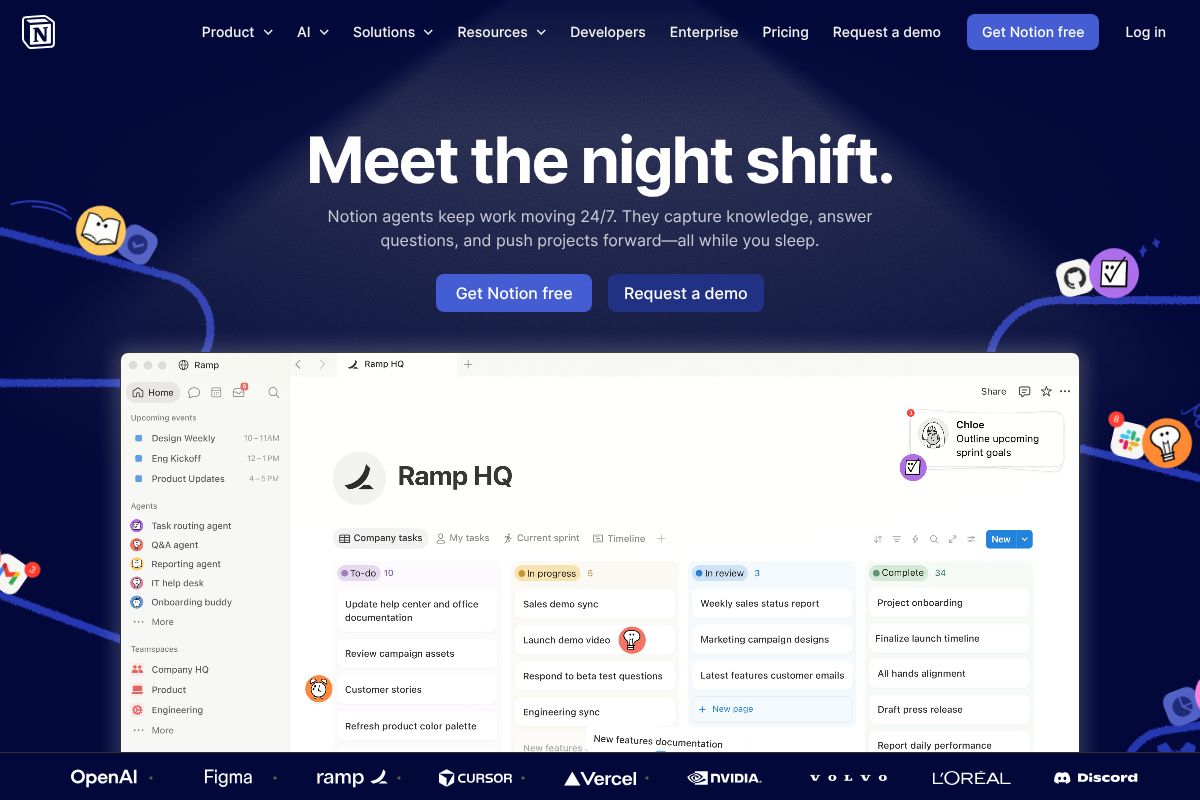
If your team is currently juggling a project management tool, a separate wiki, a shared drive, and a task tracker — Notion can quietly replace most of that stack. It’s a flexible workspace that combines documents, databases, tasks, and now AI into a single interface that your whole team can work from. For small teams and creators especially, that kind of consolidation is worth a lot.
Notion works particularly well when your team needs structure but doesn’t want to be locked into someone else’s idea of what that structure should look like. You build the system that fits how you actually work — not the other way around.
How Notion Handles Team Coordination
At its core, Notion gives your team a shared workspace where everything lives in one place. You can set granular permission controls so contractors only see what they need to, while full-time team members get broader access. This alone removes a lot of the awkward file-sharing friction that slows remote teams down.
The template library is genuinely useful here — you’re not starting from scratch every time you need a meeting agenda, project brief, or content calendar. There are hundreds of pre-built templates, and customizing them takes minutes rather than hours.
One of the more practical additions in recent updates is Notion, which is included in the Business plan. It can summarize long documents, generate first drafts, and pull action items out of meeting notes automatically. For a remote team that runs on async communication, that kind of AI-assisted clarity cuts down on the “wait, what did we decide?” moments significantly.
In practice, Notion can replace your:
- Wiki or internal knowledge base — for SOPs, onboarding docs, and reference material
- Task manager — with kanban boards, timelines, and assignable to-dos
- Meeting notes hub — with AI summaries and linked action items
- Content planning tool — especially useful for marketing teams and creators
Pricing starts at $10 per paid user per month on the Plus plan, with the Business plan unlocking AI features and advanced permissions. The main trade-off worth knowing upfront: Notion has a real learning curve. It’s not overwhelming, but new users often need a week or two before the system clicks. If your team wants something they can use on day one without any setup, it may not be the right first choice.
Meeting Documentation: Otter.ai vs. Fireflies.ai
Remote meetings are only as useful as the notes that come out of them. If your team is relying on one person to frantically type while also trying to participate, you’re losing both accuracy and engagement. Otter.ai and Fireflies.ai both solve this problem — but they’re built for different types of teams and workflows.
Otter.ai: Transcription for Busy Professionals
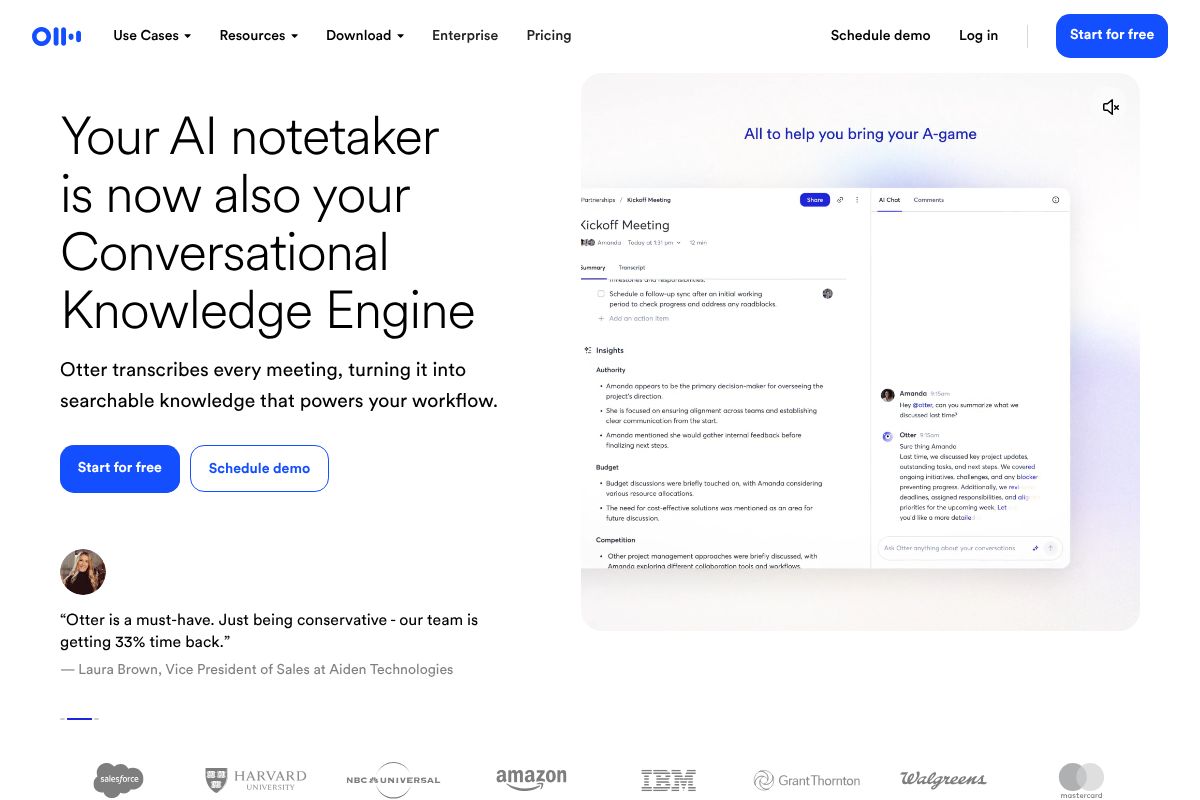
Otter.ai joins your video calls and transcribes everything in real time. It identifies individual speakers, timestamps key moments, and produces a searchable transcript you can reference, share, or summarize within minutes of the call ending. There’s no digging through a recording trying to find what was said at the 23-minute mark.
For content creators on client calls or marketers sitting through multiple briefings a week, this is genuinely useful. You can stay present in the conversation knowing the details are being captured accurately in the background. Otter.ai also generates automated summaries and lets you highlight key moments during the meeting itself.
A few things worth knowing:
- Real-time transcription with speaker identification across Zoom, Google Meet, and Teams
- Searchable transcripts — find any word or phrase across past meetings
- AI summaries that pull out key points and action items automatically
- Team workspaces for sharing and collaborating on notes
Accuracy is strong for clear audio, though it can struggle with heavy accents or crosstalk. Pricing runs from a free plan up to $16.99/month, with the Pro plan available at $10/month on annual billing. Otter.ai offers a 20% recurring commission through its affiliate program, making it a solid recommendation for anyone in your audience managing a heavy meeting load.
Fireflies.ai: Conversation Intelligence for Sales Teams
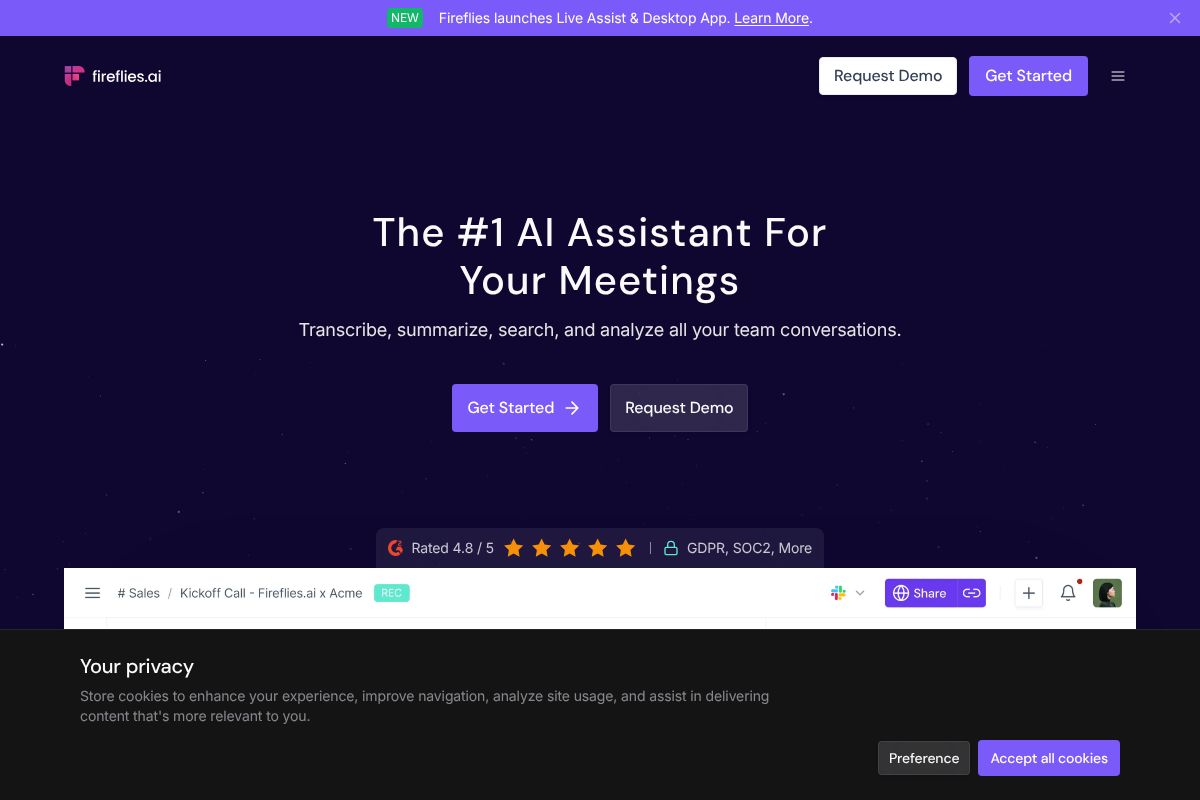
Fireflies.ai goes a step further than basic transcription. Yes, it records and transcribes your meetings — but its real strength is what it does with that data afterward. The platform builds a searchable conversation history across your entire team, so you can pull up what a prospect said three calls ago or track how a candidate responded during a screening interview.
That makes it a particularly strong fit for sales teams and recruiters who need to reference past interactions regularly and spot patterns across many conversations. Fireflies.ai also integrates directly with popular CRMs like Salesforce and HubSpot, automatically logging call notes without any manual entry.
Key features include:
- Searchable conversation history across your entire team’s meetings
- CRM integration with Salesforce, HubSpot, and other major platforms
- Team insights and analytics — talk time, topic tracking, sentiment analysis
- Topic filters to quickly surface pricing discussions, objections, or next steps
The trade-off compared to Otter.ai is that Fireflies.ai is more complex to set up and most of its best features are geared toward team-level use rather than individual professionals. Pricing starts with a free plan and scales to $18/month, with the Pro plan at $10/month on annual billing. Like Otter.ai, Fireflies.ai offers a 20% recurring commission — and given how sticky the tool becomes once a sales team is onboarded, that recurring element adds up quickly.
If you’re a solo creator or marketer, Otter.ai is the more practical starting point. If you’re managing a sales pipeline or running a recruiting operation, Fireflies.ai’s conversation intelligence features justify the additional complexity.
Pricing Breakdown: What You’ll Actually Spend
Before committing to any tool, it helps to see the numbers side by side. The good news: all three tools covered here offer free tiers that are genuinely usable — not just stripped-down demos. Here’s how the pricing stacks up across Notion, Otter.ai, and Fireflies.ai.
| Tool | Free Tier | Entry Paid Plan | Team/Business Plan | Annual Discount |
|---|---|---|---|---|
| Notion | Unlimited personal use | $10/user/month (Plus) | $15/user/month (Business) | ~20% off annual billing |
| Otter.ai | 300 minutes/month transcription | $16.99/user/month (Pro) | $30/user/month (Business) | Available on annual plans |
| Fireflies.ai | Limited meeting storage | $10/user/month (Pro, annual) | $18/user/month (Business) | Included in Pro pricing above |
For a small team of three to five people, you’re realistically looking at $30–$75/month once you move into paid tiers. That’s a reasonable investment when you consider the hours saved on meeting follow-ups, documentation, and task coordination alone. Larger teams will feel the per-user costs more acutely, but enterprise plans typically include volume discounts worth negotiating.
Free vs. Paid: When to Upgrade
Honestly? If your team is just getting started with remote work tools, start on the free tiers and stay there until something breaks. That’s not a cop-out — it’s genuinely the right approach. Free plans across all three tools are functional enough to validate whether the tool fits your workflow before you spend a dollar.
Here’s when you’ll typically hit the ceiling:
- Notion Free: Works well solo, but collaboration features and permission controls become limiting beyond two or three active users
- Otter.ai Free: 300 minutes goes quickly if you’re in meetings daily — most active users outgrow this within a month
- Fireflies.ai Free: Meeting storage limits become a real constraint once you need to reference calls from more than a few weeks back
The practical threshold for upgrading is usually around five or more regular users, or when you start losing productivity because of plan restrictions. Upgrade based on friction, not anticipation.
Who Should Use Each Tool
Not every tool is the right fit for every team. Here’s a practical breakdown of who gets the most value from each option — and how different audience types can combine them effectively.
Content Creators
If you’re managing client projects, editorial calendars, or a small creative team, Notion is your command center. Use it to track briefs, deadlines, and deliverables in one place. Pair it with Otter.ai for client discovery calls — instead of scrambling to take notes while trying to stay present in the conversation, let Otter capture everything and review the transcript afterward. It’s a small shift that makes a noticeable difference in how professional your follow-ups feel.
Marketers
Marketers are arguably the audience that benefits most from all three tools. Use Notion to manage campaign workflows and content pipelines. Use Otter.ai for internal brainstorms and strategy sessions where you need a searchable record. Use Fireflies.ai for vendor calls, agency check-ins, or stakeholder reviews — anywhere you need an automatic summary sent to multiple people without someone volunteering to take notes.
Small Business Owners
For small business owners wearing multiple hats, simplicity matters. Set up Notion as your team hub — SOPs, onboarding docs, project tracking, all in one place. Add Fireflies.ai specifically for sales calls and client check-ins, where having a timestamped record protects you and keeps your team aligned on what was actually agreed.
Freelancers
Freelancers typically don’t need the full stack. Otter.ai’s free tier handles most client meeting needs without any cost, giving you accurate transcripts to reference when scoping follow-on work or resolving scope disputes. Add Notion only if you’re juggling three or more active clients simultaneously.
Common Pitfalls and How to Avoid Them
Even the best tools can work against you if they’re implemented poorly. Here are the most common mistakes remote teams make — and how to sidestep them.
Tool Overload
The biggest trap is adopting too many tools at once. When your team is split across five different platforms, communication fragments and nothing gets used well. This is exactly why an all-in-one workspace like Notion is worth the setup investment — consolidating docs, tasks, and wikis in one place reduces the urge to keep adding new apps. That said, Notion’s flexibility comes with a real learning curve. Expect a few weeks before your team feels genuinely comfortable, and build in time for that transition.
Poor Adoption
A tool nobody uses is worse than no tool at all. Rolling out new software without proper onboarding is the fastest way to kill adoption. Don’t just share a login — run a short walkthrough, create a simple internal guide, and designate one person to answer questions in the first month. Resistance is normal; structure reduces it.
Privacy Concerns with AI Transcription
AI meeting tools like Otter.ai and Fireflies.ai record and process conversations on third-party servers. That’s worth disclosing to participants — not just ethically, but legally in many regions. Always inform attendees a bot is present, and review each tool’s data retention policies before using them for sensitive client or legal discussions.
Transcription Accuracy Limits
AI transcription is impressive but not perfect. Heavy accents, crosstalk, and technical jargon can produce errors that change meaning. Treat transcripts as a useful reference, not a word-for-word record. Integration gaps are also real — not every tool connects natively with your existing stack, so confirm compatibility before committing to a paid plan.
Your Next Step: Choose and Start Small
The biggest mistake remote teams make is trying to overhaul everything at once. Pick one pain point, find the tool that addresses it, and give it a genuine two-week trial before deciding whether it earns a permanent spot in your workflow.
Here’s a simple starting point based on what’s hurting most right now:
- Scattered docs and no central hub? Start with Notion — the free plan covers small teams and gives you a real feel for whether it fits your style.
- Meetings with no follow-through? Try Otter.ai — the free tier includes 300 monthly transcription minutes, enough to test it across a few real meetings.
- Need automated summaries and CRM sync? Fireflies.ai offers a free plan that lets you record and search meetings before you touch a credit card.
Two weeks is enough time to know whether a tool genuinely reduces friction or just adds another tab to your browser. Involve your team early — their buy-in matters more than the feature list. A tool with slightly fewer capabilities that your team actually opens every day will always outperform a powerful one that gets ignored.
Start with what solves your biggest pain point today.
Our Verdict
Editorial rating: 4.6/5
Essential guide with practical trade-offs
This article provides solid guidance on matching tools to team needs with honest pricing breakdowns and real-world pitfalls. The main trade-off: all-in-one platforms like Notion offer simplicity but may lack specialized depth that dedicated tools provide for specific functions like transcription.
Frequently Asked Questions
What is the best tool for managing remote teams?
The best tool depends on your needs: Notion works well for all-in-one workspace management, while Otter.ai and Fireflies.ai excel at meeting documentation. Evaluate your team’s primary pain points—communication, task tracking, or documentation—before selecting.
How much do remote team management tools cost?
Costs range from free tiers to $30+ per user monthly. Notion starts at $10/month per workspace, while Otter.ai and Fireflies.ai offer free plans with premium tiers at $10-20 monthly. Calculate total spend based on team size.
Do I need multiple tools or one platform for remote teams?
One integrated platform reduces friction and improves adoption, but many teams use 2-3 specialized tools for specific functions. Choose based on whether your team prioritizes simplicity over specialized features in each category.
Which remote team tool is easiest to implement?
Otter.ai and Fireflies.ai have the fastest onboarding since they integrate directly with video conferencing platforms. Notion requires more setup but offers greater customization. Start with the tool addressing your most urgent workflow bottleneck.
Related Reads
- Notion AI Review 2026: Is It Worth It for Your Team?
Honest Notion AI review for 2026. See features, pricing, pros/cons, and how it compares to alternatives for creators and…
- Best AI Assistant in 2026: Top Picks for Creators & Teams
Find the best AI assistant for your needs in 2026. Compare top tools for creators, marketers, and small business owners …
- Best AI Tools for Note-Making in 2026: Complete Guide
Find the best AI note-making tool for your workflow. Compare Notion, Otter.ai, Fireflies & more with honest reviews & pr…